Maestro AI Skills help AI coding assistants understand how to use Maestro MIDI Player Tool Kit correctly inside Unity projects.
Instead of asking a general-purpose AI assistant to guess which Maestro component or API to use, the Skills provide it with product-specific workflows, constraints and implementation guidance.
They are included with Maestro MPTK Free and Pro.
Available from Maestro MPTK 2.22 – Maestro AI Skills are introduced with version 2.22 and are not included in earlier releases.
What are Maestro Skills?
A Maestro Skill is a small set of instructions focused on a specific use case or technical workflow.
Examples include:
-
building a rhythm game
-
reacting to MIDI note events
-
synchronizing gameplay with MIDI time
-
creating a music visualizer
-
building an interactive instrument
-
controlling MIDI playback
-
generating music at runtime
-
working with SoundFonts
-
connecting external MIDI devices
The Skills are designed around actual Maestro components and APIs rather than generic MIDI concepts.
Tell your AI what you want to build
Once the Skills are available to your AI coding assistant, you can describe your goal naturally.
For example:
Build a simple rhythm game with Maestro MPTK. Spawn an object when a MIDI note is received and synchronize its movement with the music.
Or:
I want to create a visualizer in Unity where each MIDI note triggers a particle effect.
Or simply:
Help me play a MIDI file from the Maestro MIDI database and react to Note On events.
The AI assistant can then use the relevant Maestro Skill to identify the appropriate component, API and implementation pattern.
Supported AI coding assistants
Maestro Skills use the open Agent Skills standard based on SKILL.md files.
This makes them portable across AI coding assistants that support the Agent Skills format. The same Maestro Skills can therefore be used with compatible tools such as Codex, Claude and other assistants implementing the standard.
Some assistants may use a different folder location or require a specific setup to discover project Skills, but the Maestro Skill content itself follows the same open format.
Detailed setup instructions for the most common assistants are provided below.
Where are the Skills located?
The Maestro Skills are installed directly with the MPTK package.
They are stored under the Maestro MidiPlayer/AI/Skills folder.
Each Skill focuses on one workflow and contains the information the AI assistant needs to work with the corresponding Maestro features.
You normally do not need to edit these files.
Their purpose is to give the coding assistant reliable, product-specific context while it works inside your Unity project.
Free and Pro workflows
The same Skills system is available in Maestro Free and Maestro Pro.
Maestro Free includes guided workflows for core features such as:
-
MIDI playback
-
receiving MIDI note events
-
gameplay synchronization
-
MIDI-driven visual effects
-
interactive instruments
-
real-time MIDI event playback
-
channel and instrument control
Some workflows also contain optional extensions that use Maestro Pro features.
When a requested workflow requires a Pro-only feature, the Skill identifies that limitation instead of generating code that incorrectly assumes the feature exists in Free.
Maestro Pro unlocks advanced workflows such as:
-
MIDI creation, editing and export
-
external MIDI devices
-
runtime SoundFont loading
-
advanced playback and playlists
-
chord, scale and progression tools
-
SoundFont optimization
-
spatial MIDI and audio workflows
A simple workflow
Using Maestro Skills usually follows this pattern:
-
Add Maestro MPTK to your Unity project.
-
Open your project with your preferred AI coding assistant.
-
Make sure the assistant has access to the Maestro Skills included in the project.
-
Describe what you want to build.
-
Let the assistant identify and use the appropriate Maestro Skill.
-
Review and test the generated changes in Unity.
For best results, describe the expected behavior rather than immediately asking for a specific Maestro class or API.
For example, prefer:
Create a MIDI-driven object spawner synchronized with the music.
instead of:
Write code using MidiFilePlayer and OnEventNotesMidi.
The first approach lets the Skill choose the most appropriate Maestro workflow.
The Skills do not replace the documentation
Maestro Skills are designed to make implementation faster and easier, but they do not replace the Maestro documentation or API reference.
They provide the AI assistant with the context needed to choose the correct approach and generate code that matches Maestro workflows.
For deeper technical information, you can still use:
-
Maestro documentation
-
API reference
-
demo scenes
-
Quick Start
-
Unity examples
Start simple
If you are discovering Maestro, start with a small goal such as:
-
play a music file in Unity
-
trigger a Unity object when a musical note is played
-
synchronize an animation or gameplay event with the music
-
create a simple music visualizer
-
play notes from C# code
Once that works, the same Skills system can help you extend the project toward more advanced Free or Pro workflows.
Technical Details
Where are the Maestro Skills?
Maestro AI Skills are included directly in the asset and installed with your Unity project.
They are stored under the Maestro MidiPlayer/AI/Skills folder. Each Skill has its own folder containing a standard SKILL.md file.
The Skills follow the open Agent Skills format, so assistants that support SKILL.md-based Skills can use the same Maestro content without requiring a proprietary format.
Free and Pro Skills
The full Maestro Skills library is included in both Maestro Free and Maestro Pro.
This means that Free users can discover the complete set of Maestro workflows, including workflows that rely on Pro-only features.
The difference is not which Skill files are installed, but which Maestro capabilities are available in the current edition.
Skills are designed to handle this distinction explicitly:
-
Free workflows use only features available in Maestro Free.
-
Mixed workflows provide a Free path and may also describe optional Pro extensions.
-
Pro workflows identify the required Pro feature instead of generating code that is incorrectly presented as compatible with Free.
This lets you start with Maestro Free, explore the available workflows, and understand exactly what additional capabilities Maestro Pro unlocks.
Skill format
Each Maestro Skill is a standard SKILL.md file with metadata and instructions describing a specific Maestro workflow.
A Skill can describe:
-
which Maestro component to use
-
which API or event is appropriate
-
the recommended implementation pattern
-
edition-specific limitations
-
common pitfalls and constraints
-
possible extensions for more advanced workflows
You normally do not need to open or edit the Skill files yourself. They are primarily intended to provide reliable Maestro-specific context to your AI coding assistant.
Efficient context usage
Compatible AI assistants do not necessarily load every Maestro Skill in full for every request.
With assistants that support progressive Skill discovery, only lightweight Skill metadata – such as the name and description – is initially available to the agent. The complete SKILL.md instructions are loaded only when a Skill is relevant to the current task.
This keeps the AI context smaller and avoids consuming tokens with Maestro workflows that are unrelated to what you are building.
AI Assistants
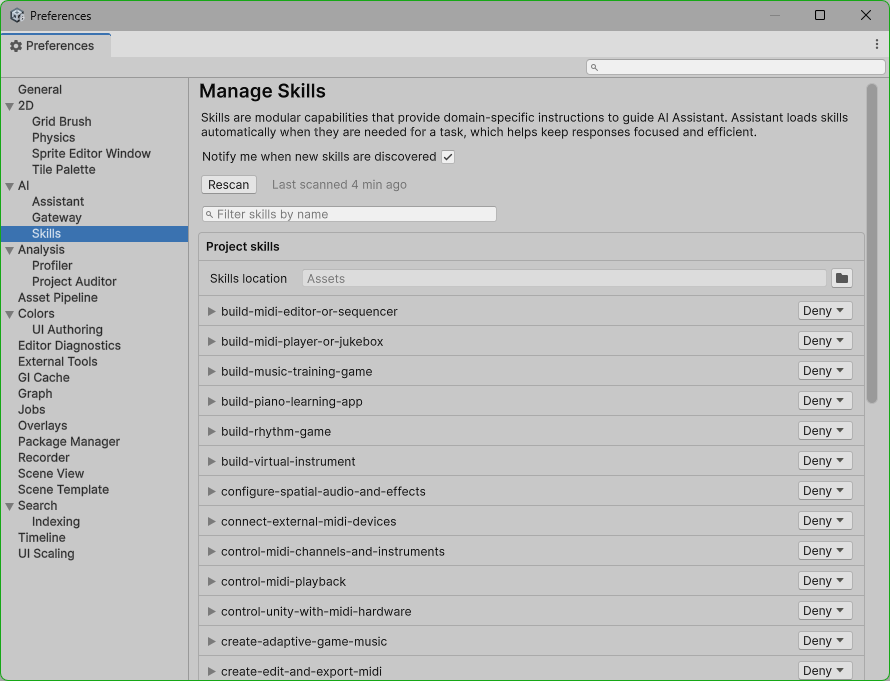
Unity AI
Unity AI Assistant supports Skills based on the standard SKILL.md format.
Unity already uses this mechanism for some of its own packages, where the appropriate Skill can be activated automatically from a natural-language prompt.
Maestro Skills use the same SKILL.md format. Depending on how Unity AI exposes third-party Skills in your current version, you may need to explicitly reference the Maestro Skill or make it available to the assistant before using it.
Then simply describe what you want to build, for example:
Create a simple rhythm game with Maestro where objects react to the music.
Use Agent mode when you want Unity AI Assistant to create or modify scripts and project assets.
Codex
Codex supports Agent Skills natively and automatically discovers project Skills stored under:
.codex/skills/<skill-name>/SKILL.md
Maestro distributes its Skills inside the Unity package, so they may need to be copied or linked once into the project’s .codex/skills/ folder before Codex can discover them automatically.
Once available, Codex reads each Skill’s name and description and selects the relevant Maestro workflow from your request.
For example:
Create a simple rhythm game with Maestro where objects react to the music.
Codex can then load the appropriate Maestro Skill and use the corresponding MPTK APIs and workflow.
Claude Code
Claude Code supports Agent Skills natively and automatically discovers project Skills stored under:
.claude/skills/<skill-name>/SKILL.md
Maestro distributes its Skills inside the Unity asset, under the AI/Skills folder. To make them automatically available to Claude Code, copy or link the Maestro Skill folders into your project’s .claude/skills/ directory.
Claude reads each Skill’s name and description first, then loads the full SKILL.md instructions only when the Skill is relevant to your request.
For example:
Create a simple music visualizer with Maestro where Unity objects react to the notes being played.
Claude Code can then select the appropriate Maestro Skill and use the corresponding MPTK workflow and APIs.
GitHub Copilot
GitHub Copilot supports Agent Skills natively and can automatically discover project Skills stored under:
.github/skills/<skill-name>/SKILL.md
Copilot also supports compatible Skill locations such as .claude/skills and .agents/skills.
Maestro distributes its Skills inside the Unity asset, under the AI/Skills folder. To make them available for automatic discovery, copy or link the Maestro Skill folders into one of the supported project Skill directories.
Copilot selects relevant Skills from your request and loads the full SKILL.md instructions only when needed.
For example:
Create a Unity music visualizer with Maestro where objects react to the notes being played.
Copilot can then select the appropriate Maestro Skill and use the corresponding MPTK workflow and APIs.
Mistral Vibe Code
Mistral Vibe Code supports Agent Skills natively and follows the open Agent Skills specification based on SKILL.md files.
Maestro distributes its Skills inside the Unity asset, under the AI/Skills folder. To use them with Vibe Code, make the Maestro Skill folders available in one of the Skill locations supported by your Vibe Code setup.
Vibe uses progressive Skill discovery: it initially loads only lightweight metadata such as each Skill’s name and description, then loads the complete SKILL.md instructions only when a Skill matches your request.
For example:
Create a simple interactive instrument in Unity with Maestro where clicking an object plays a musical note.
Vibe Code can then select the appropriate Maestro Skill and use the corresponding MPTK workflow and APIs.
Other AI coding assistants
Using another AI coding assistant? Check whether it supports the Agent Skills standard and where project Skills should be installed.
Maestro Skills use the standard SKILL.md format, so they can be used with any compatible assistant that supports this specification.
